
Reframe & Expand
Extend a picture to any aspect ratio — the scene continues past its edges
4 free credits on sign-up — your first Standard image with any tool, no card required.
- 01Upload the image or pick a render from your library
- 02Choose the new aspect ratio
- 03Render — the original stays intact, the scene grows around it
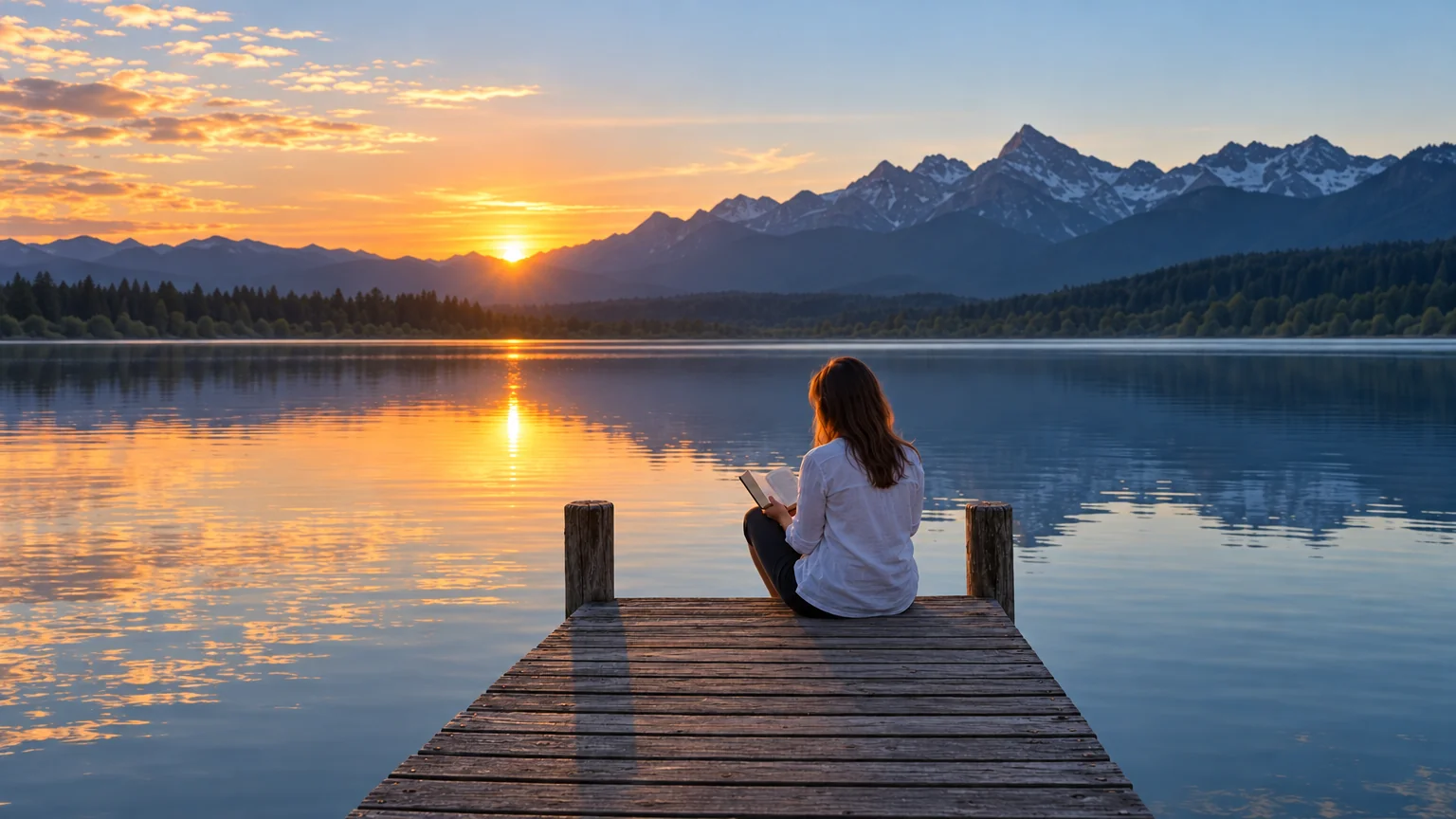
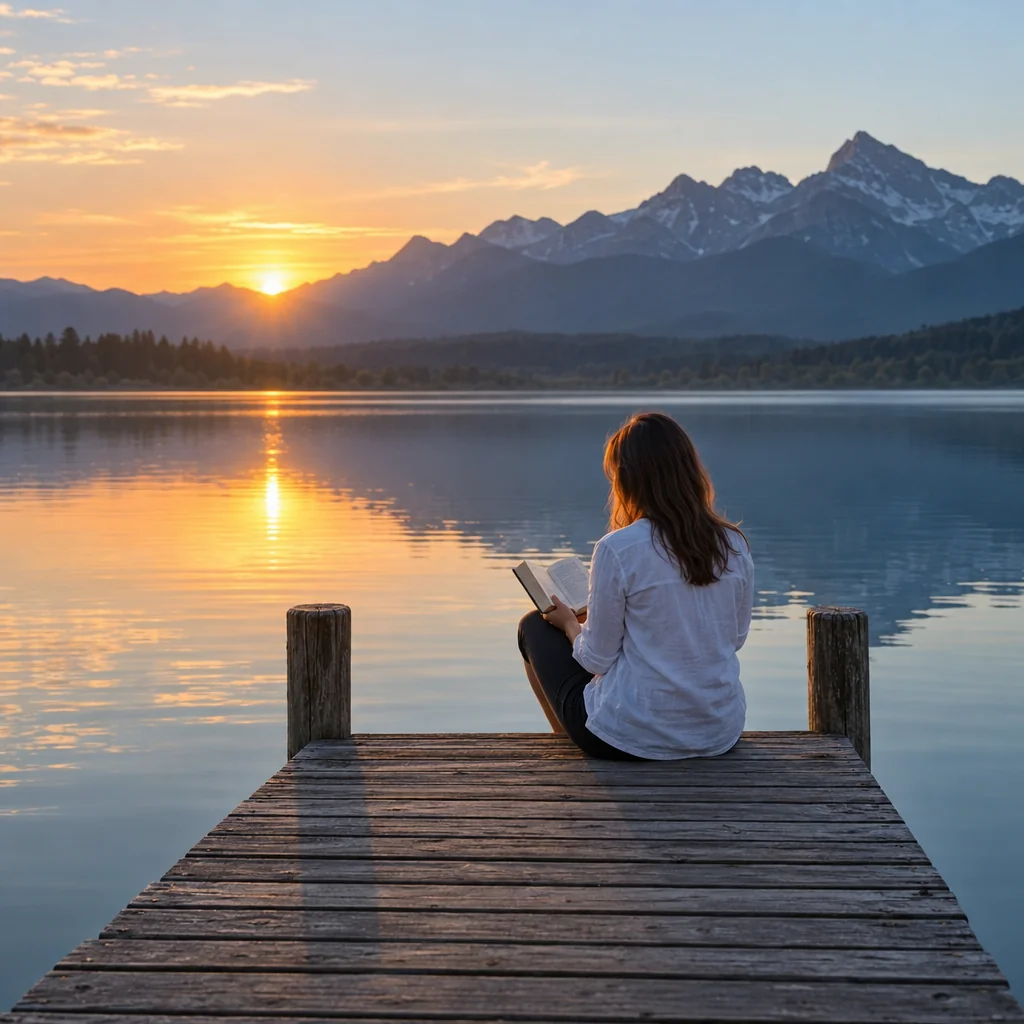
Drag the handle: the uploaded photo on the left, what the tool made on the right.
Reframe & Expand solves the format problem without cropping. Choose a new aspect ratio and the original content stays exactly as it is while the scene is extended beyond its edges — more sky, more floor, more street — continuing the background, lighting and perspective so the join is invisible. A square render becomes a 16:9 banner; a landscape photo becomes a 9:16 story; a tight portrait gains room for a headline. It is the tool for turning one image into a full set of formats — a hero image into banners, a portrait into a story, a square render into a widescreen wallpaper — without commissioning anything new.
Nine target ratios cover every destination, from 1:1 and 4:5 for feeds to 2:3 and 3:4 for print and phones, 16:9 and 21:9 for desktops, banners and covers. Because the source pixels are preserved and only new area is generated, the subject never gets distorted or cut, which is what makes this different from a crop or a stretch. The extension is generated from the scene itself, so a beach gains more beach, a studio background gains more background and a street gains more street, with the light and perspective carried through.
Designers use it to turn one hero render into a whole set of formats; photographers use it to rescue a shot framed too tightly; marketers use it to fit a single image to every placement a campaign needs. Check the extended edges at Pro quality when they contain detail, then send the result to Upscale for large output. Rendered versions are saved to your library, so the same source can be reframed into several ratios in one sitting and each result sent on to Upscale for its final destination. The subject is never touched, only the space around it.
What you set
- Your image
- New aspect ratioSquare (1:1)Landscape (3:2)Portrait (2:3)Widescreen (16:9)Vertical (9:16)Standard (4:3)Tall (3:4)Social portrait (4:5)Ultrawide (21:9)
After it's made
- Change details with a sentence, or hand it to any other tool
- Standard, Pro and Max quality on every make
- Enlarge to 32 megapixels or turn it into a short clip
- Every image saved to your library, downloadable full size
About this tool
- Does it crop or stretch my image?
- Neither. The original pixels stay unchanged and new scene is generated beyond the edges to reach the target ratio, so the subject keeps its proportions.
- What gets painted in the new area?
- A continuation of what is already there — the same background, lighting and perspective. Skies, walls, floors, water and landscapes extend most convincingly; busy scenes may benefit from a second render.
- Can I go from portrait to widescreen?
- Yes — pick 16:9 or 21:9 and the scene extends to both sides. The bigger the change, the more new content is generated, so review the edges at Pro quality.
- Which ratio should I pick for social?
- 1:1 or 4:5 for feed posts, 9:16 for stories and short video covers, 16:9 for a banner or thumbnail. You can reframe the same source several times for a complete set.
- Can I try Reframe & Expand before paying?
- Yes. A new account starts with 4 free credits, which covers your first Standard image with Reframe & Expand — no card required. After that, credits come from a monthly plan or a one-time pack.
Often used next
Image Upscaler
Enlarge any image to 4, 8, 16 or 32 megapixels with detail added, not smeared
Wallpaper Generator
Wallpapers composed for the screen they will live on — phone to ultrawide
Edit With Words
The universal edit: say what should change and everything else stays put
Background Changer
Keep the subject, swap the setting — one sentence, blended in properly
Made for