
Put Your Collection On A Model Today
Samples arrive, the drop date is set, and the only pictures you have are the garments flat on a table or hanging on a rail. Model days cost real money, and by the time the pictures come back the colorway has changed. You want on-body images for the product page, a street version for social and a runway version for the lookbook, and you want them before the pieces sell out.
Upload a picture of the garment to Garment on a Model, choose a scene, studio, street, runway, beach or office, and describe the model if you have a specific look in mind. The result shows the garment worn, with its cut, print, seams and color kept as made. Use Reframe & Expand to fit the lookbook or the 4:5 feed slot, and Background Changer when a campaign needs a very particular setting.

Made in the Studio with the first tool on the route.
You want
- The drop is Friday and my product pictures are flat lays on a cutting table.
- Booking models for every colorway is not in the budget.
- The print on the fabric has to look like the print on the fabric.
- Product page, feed, lookbook. Three shapes, one garment.
The route
- 1Dress a model in your garment

Shows the piece worn and moving, in the scene you choose, with the cut, print and color kept as made.
Garment on a Model - 2Reframe for the lookbook and the feed
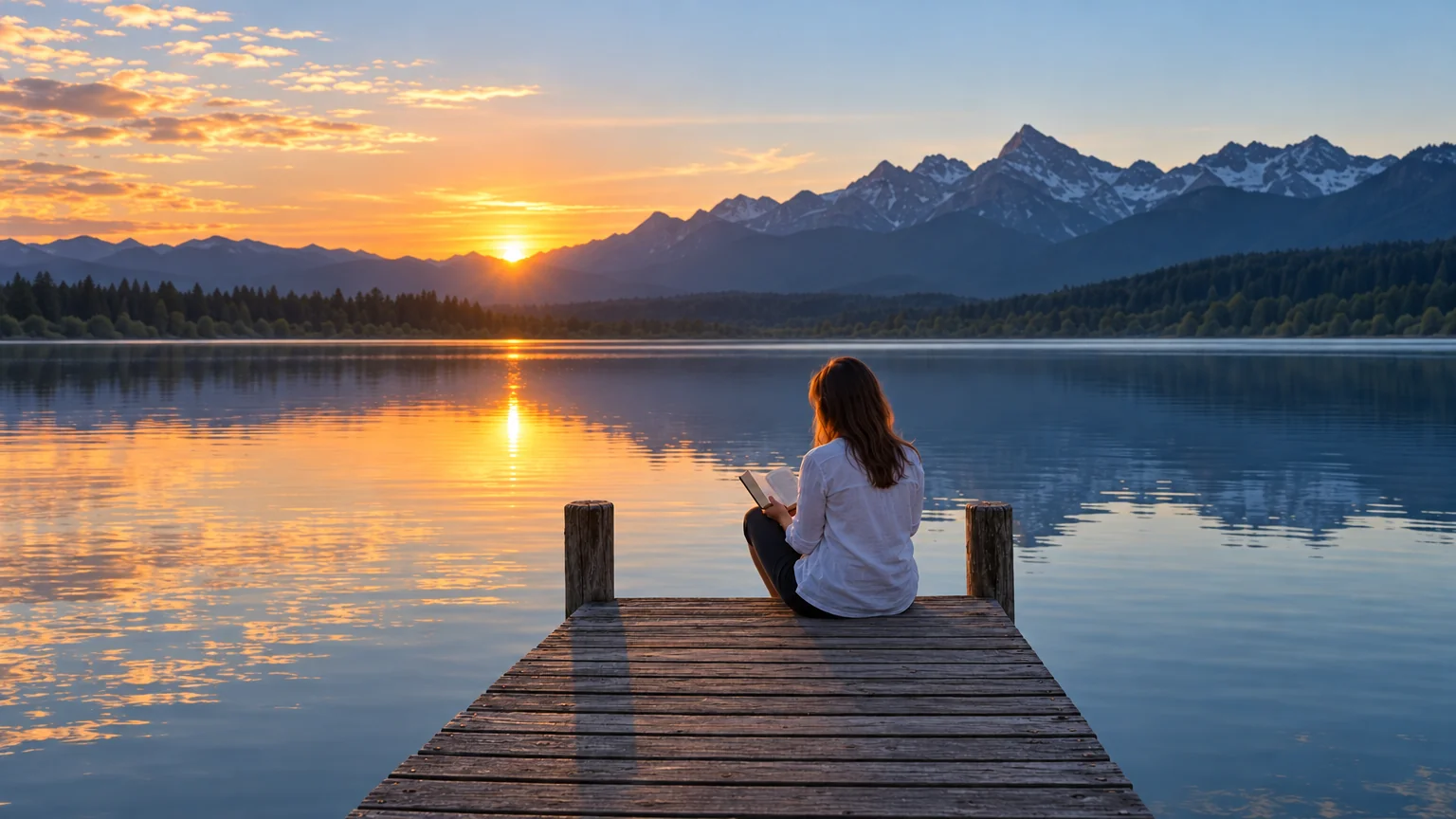
Changes the frame to 4:5 or 2:3 so one render fits the product page, the story and the printed lookbook.
Reframe & Expand - 3Change the setting for a campaign
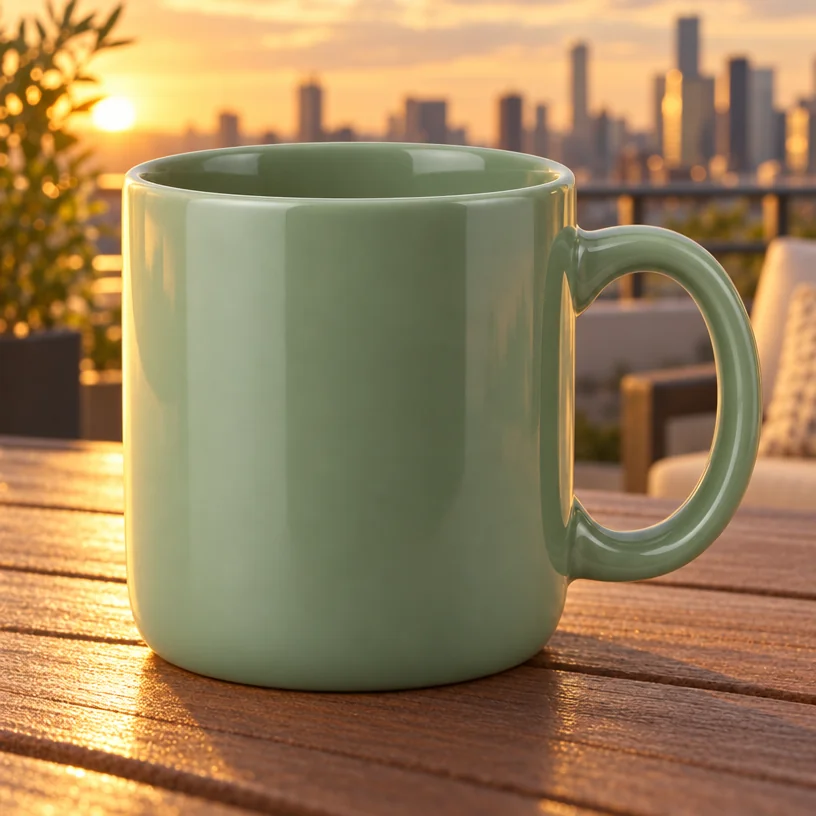
Describe a location in words and the model and garment are placed there, so a campaign look does not need a second render.
Background Changer - 4Upscale for print
Lookbooks and posters need more pixels; upscale up to 32 MP.
Image Upscaler
Good to know
- Is it okay to start from a garment on a hanger?
- Yes. A hanging garment, a flat lay or a mannequin picture all work as the starting point. Keep the whole piece in frame, photograph it front-on in even light and make sure the print is sharp. The tool fits the garment to a model and keeps the fabric details it can see, so a clear starting picture gives a clear result.
- Does it matter which scene I choose?
- It sets the mood and the light. Studio gives a plain, even look for product pages; street and runway add movement and context for social and the lookbook; beach and office suit specific lines. Run the same garment through two scenes and compare. Each is a separate render, and every result can be reframed or sent into another tool.
- Do I need to describe the model?
- No, the field is optional. Leave it blank and you get a neutral model suited to the garment. Fill it in when the brand has a specific look, such as a tall model with cropped gray hair, or when you want the same description across a whole collection so the product pages read as one set.
Tools on this route