
Edit With Words
The universal edit: say what should change and everything else stays put
4 free credits on sign-up — your first Standard image with any tool, no card required.
- 01Upload an image or pick any render from your library
- 02Type the change as an instruction
- 03Render, then keep editing — every result can take another sentence
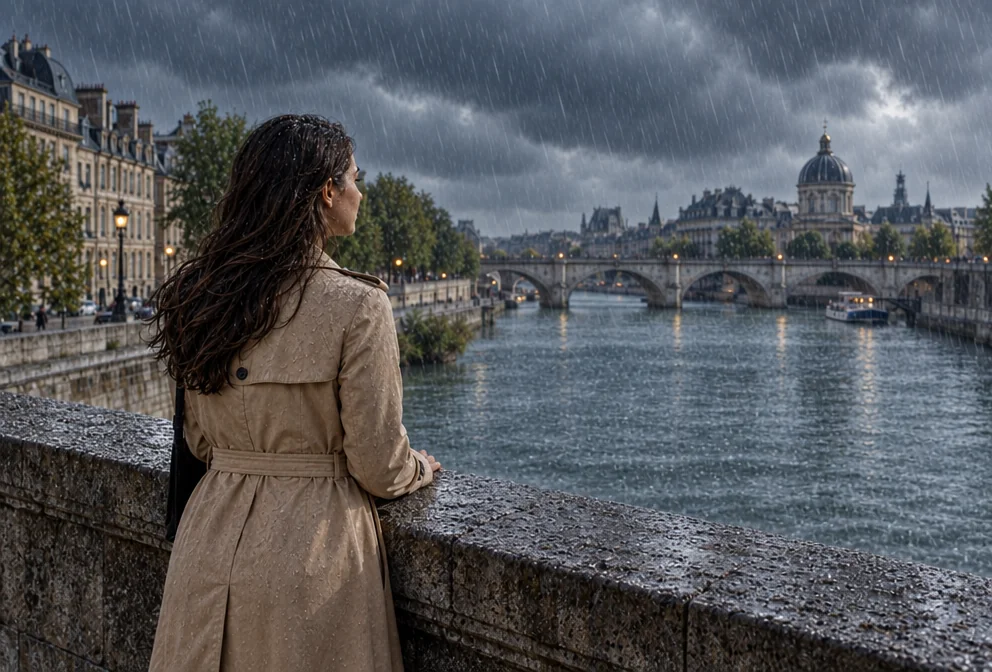
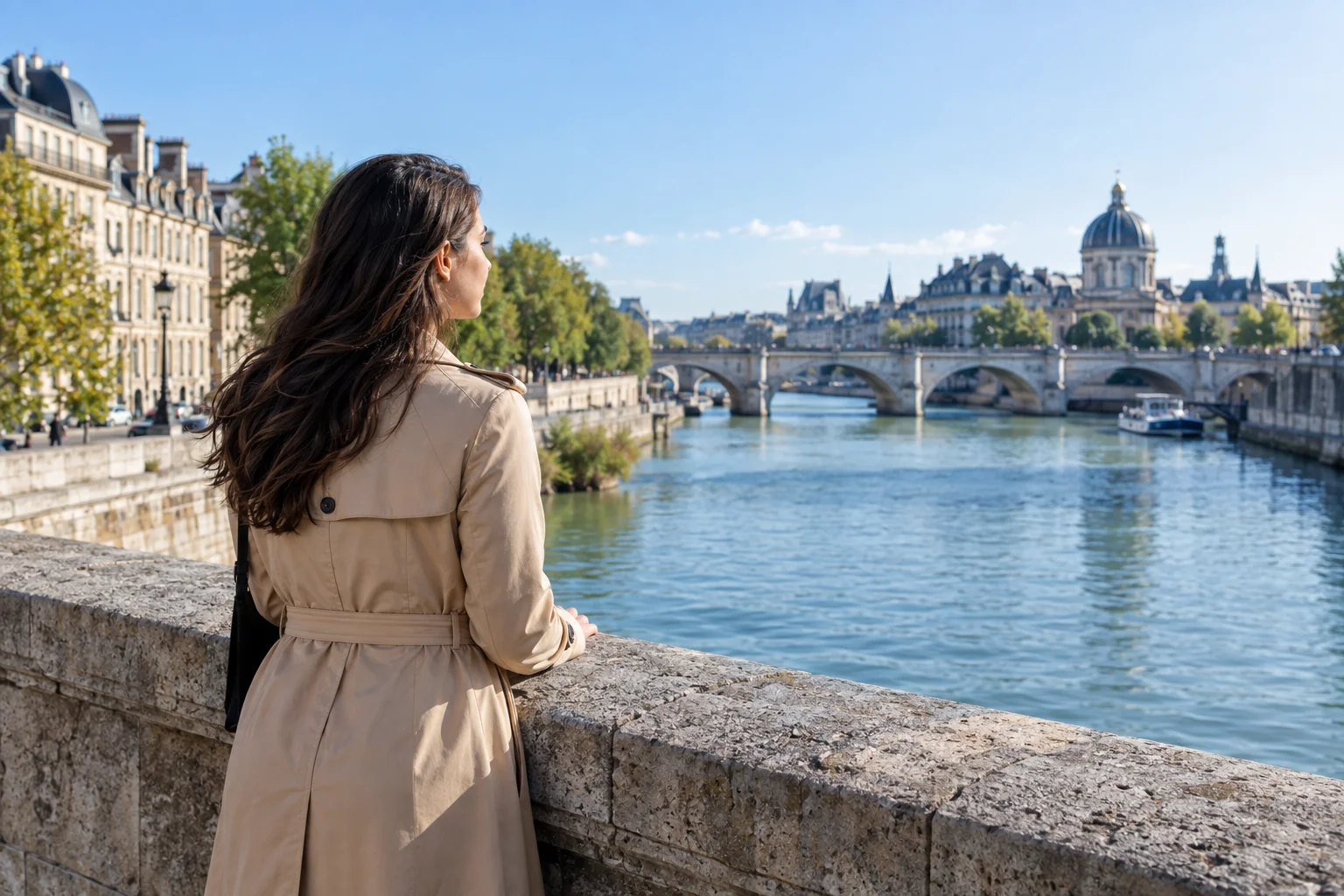
Drag the handle: the uploaded photo on the left, what the tool made on the right.
Edit With Words is the tool the whole canvas leans on. Upload an image or pick any render, type what should change, and get a version where that change is made and everything else stays put. Make the sky stormy. Change the jacket to yellow. Turn the lamp on. Replace the cup with a teapot. Swap the logo colors. One sentence, one edit, no layers. It is used by everyone the canvas serves: designers refining a logo, marketers adjusting a campaign image, illustrators fixing a detail, photographers changing the weather, and hobbyists trying ideas.
It sits first in the Next row under every result because it closes the loop on the other tools: a logo needs a color change, an illustration needs a different expression, a poster needs a warmer palette, a product shot needs the label turned to face the camera. Instead of re-rendering from scratch and losing what already worked, you adjust the one thing that did not. The examples under this description show the range — a sky, a jacket, a lamp, a cup, a logo color — and each opens the canvas with the instruction written so you only need to attach an image.
Write the instruction as a change, not a description of the whole image — "make the door red" rather than "a house with a red door" — and make one or two changes per pass for the cleanest results. Specialised tools exist for the most common edits: Background Changer, Object Remover, Add Object and Image Text Editor each apply tighter rules to their job; Edit With Words covers everything in between. Rendered edits are saved to your library beside the original, and the Compare view shows the two aligned, so it is always clear what changed and easy to go back a step.
What you set
- Your image
- Describe the edite.g. make the sky stormy and add rain
After it's made
- Change details with a sentence, or hand it to any other tool
- Standard, Pro and Max quality on every make
- Enlarge to 32 megapixels or turn it into a short clip
- Every image saved to your library, downloadable full size
About this tool
- What kinds of edits work best?
- Targeted, concrete changes: a color, a material, the weather, an expression, an object swapped for another, a light turned on. Vague instructions ("make it better") give vague results.
- Can I make several changes at once?
- You can list them, but one or two per pass keeps each change accurate. Because every result is saved, chaining passes costs nothing but credits and gives you a history to step back through.
- Will it change parts I didn't mention?
- The instruction is to keep everything else as it was. Small drifts can happen with big changes; describe what must stay ("keep the face and pose unchanged") when it matters.
- Does it work on my own photos as well as renders?
- Yes — upload any JPG, PNG or WebP. Photos, screenshots, scans and mockups all take instructions the same way as images made here.
- Can I try Edit With Words before paying?
- Yes. A new account starts with 4 free credits, which covers your first Standard image with Edit With Words — no card required. After that, credits come from a monthly plan or a one-time pack.
Often used next
Background Changer
Keep the subject, swap the setting — one sentence, blended in properly
Object Remover
Describe what to remove and the background fills in behind it
Add Object to Image
Add anything to a photo with matching light, shadow, scale and perspective
Image Text Editor
Replace text inside an image and keep the original font, color and perspective
Made for