
AI Icon Maker
Single icons on transparent backgrounds — flat, line, glyph, 3D, duotone, pixel
4 free credits on sign-up — your first Standard image with any tool, no card required.
- 01Name the subject of the icon in a few words
- 02Pick an icon style — flat, line, glyph, 3D, duotone or pixel
- 03Render and download the transparent PNG, then repeat for the set
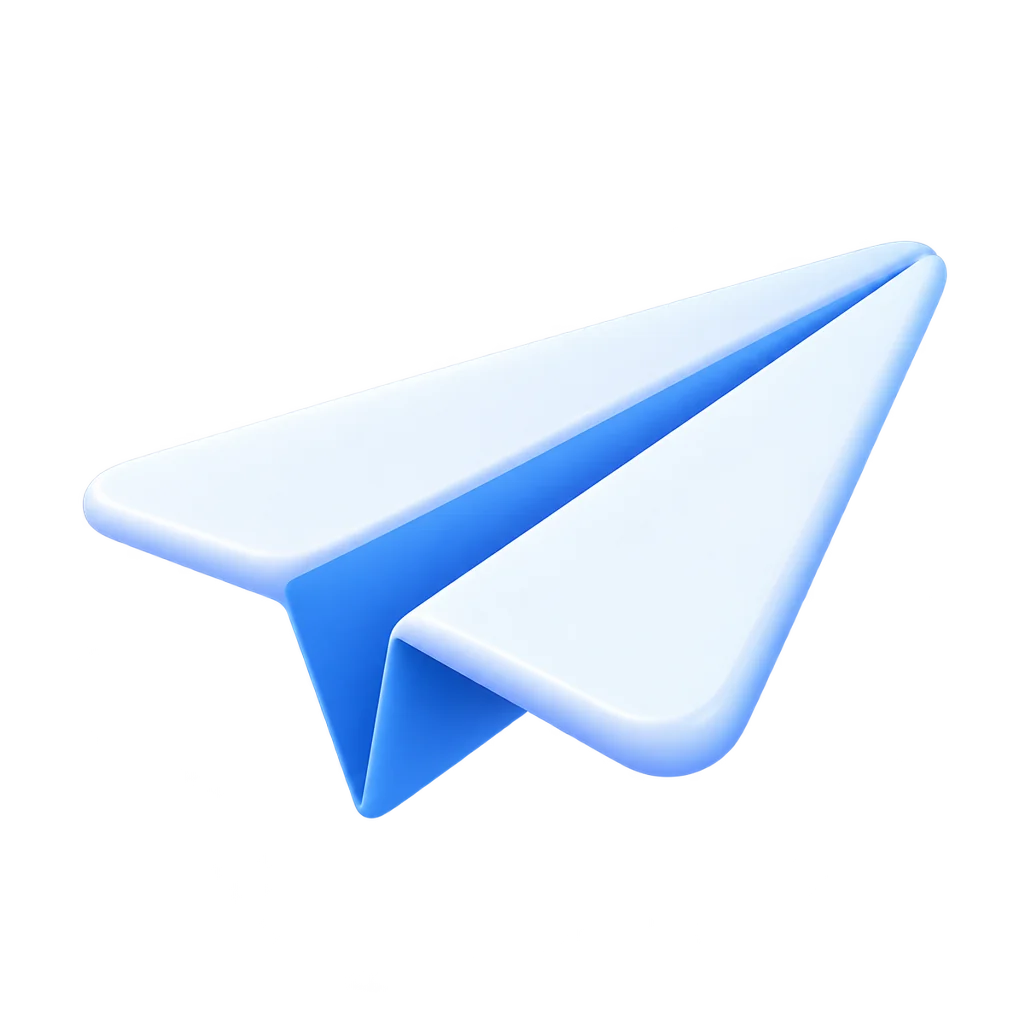
Made by this tool from the fields listed below.
Icons are unforgiving: they have to read at 24 pixels, sit inside a consistent system and carry no stray detail. The AI Icon Maker is built around those constraints. You name the subject, choose one of six icon styles, and get a single centered icon on a transparent background with even padding and no text, labels or background shapes. Product teams use it to fill gaps in an existing icon set, presentation designers to illustrate slides consistently, and indie developers to ship a full set of app and marketplace icons without hiring anyone.
The six styles map to the systems designers already use. Flat gives solid bold shapes with no outlines. Line draws a uniform stroke with rounded caps and no fill. Glyph is a single filled silhouette for toolbars and tab bars. 3D renders a soft rounded object with studio lighting for hero sections and empty states. Duotone layers two tones of one hue, and pixel snaps the icon to a crisp 32×32-style grid for games and retro interfaces. Every style keeps the same rules — one subject, centered, even padding, no text, transparent background — so a line icon of a padlock and a line icon of a bell will sit side by side without adjustment.
The trick to a coherent set is to keep the subject line short and the style fixed: "a paper airplane", "a padlock", "a shopping bag", all in line style, rendered one after another. Each comes back as a PNG with alpha that drops into Figma, a slide deck or an app asset catalog. Pair it with Logo Maker for a matching mark, and use Edit With Words to recolour an icon without re-rendering it. Because renders are saved to your library, you can come back weeks later, open the last icon and render its sibling in the same style; the set grows without drifting.
What you set
- What is the icon of?e.g. a paper airplane
- Icon styleFlatLineGlyph3DDuotonePixel
- 1:1 outputTransparent PNG
After it's made
- Change details with a sentence, or hand it to any other tool
- Standard, Pro and Max quality on every make
- Enlarge to 32 megapixels or turn it into a short clip
- Every image saved to your library, downloadable full size
About this tool
- How do I keep a set of icons consistent?
- Fix the style, keep each subject to two or three words, and render them in one sitting. Line and glyph are the most consistent across a large set; 3D varies more and suits a handful of hero icons.
- What sizes does the icon come in?
- One square render, delivered as a transparent PNG at the model's native resolution. It scales down cleanly; for large marketing use, send it through Upscale first.
- Can I change the color after rendering?
- Yes — open the result in Edit With Words and ask for the new color, or specify the color in the subject line up front ("a teal paper airplane"). Duotone accepts a hue the same way.
- Is this the right tool for an app icon?
- For a single app icon, yes — pick 3D or flat and describe the concept. Logo Maker is better when the icon must carry a brand name, and Sticker Maker when you want a die-cut border.
- Can I try AI Icon Maker before paying?
- Yes. A new account starts with 4 free credits, which covers your first Standard image with AI Icon Maker — no card required. After that, credits come from a monthly plan or a one-time pack.
Often used next
AI Logo Maker
Brand name in, transparent vector-style logo out — eight logo styles
AI Sticker Maker
Die-cut stickers with the white border already drawn — print or message-ready
Edit With Words
The universal edit: say what should change and everything else stays put
Pixel Art Generator
Crisp 8-, 16- or 32-bit pixel art on a real grid — no blur, no anti-aliasing
Made for