
Pixel Art Generator
Crisp 8-, 16- or 32-bit pixel art on a real grid — no blur, no anti-aliasing
4 free credits on sign-up — your first Standard image with any tool, no card required.
- 01Describe the scene, character or object
- 02Choose 8-bit, 16-bit or 32-bit resolution
- 03Render and download — the pixels stay sharp at any zoom
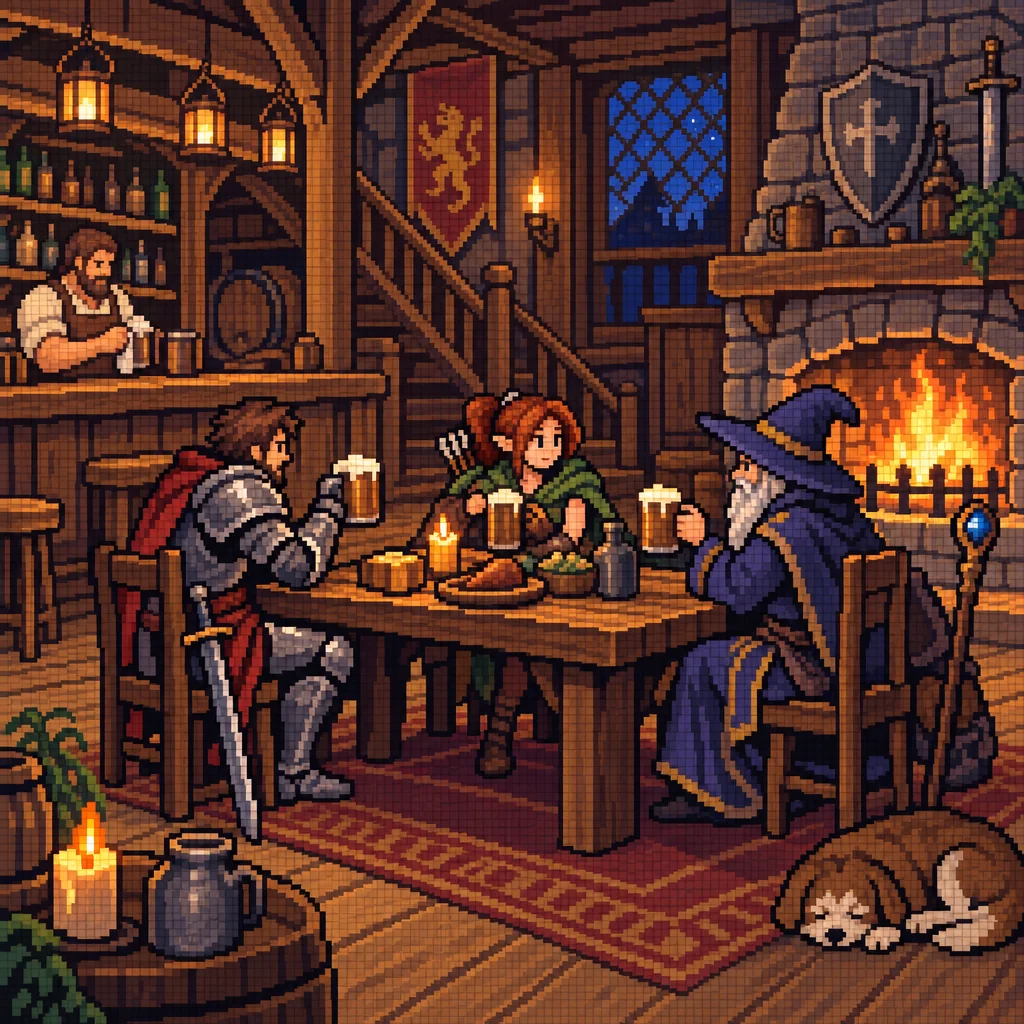
Made by this tool from the fields listed below.
Pixel art done badly is a blurry image with a mosaic filter on top. Done well it is a picture built from deliberately placed squares, a limited palette and dithering used with intent. The Pixel Art Generator aims for the second kind: hard edges, no anti-aliasing, no gradients, consistent pixel size across the whole image, and no stray text. It is used by indie developers for mock-ups and placeholder assets, by streamers for emotes and panels, and by anyone who wants an avatar that looks like it came from a favorite game.
The resolution select sets the era. 8-bit uses a very coarse grid, a palette of four to eight colors and chunky blocky sprites with no dithering, the look of the earliest home consoles. 16-bit uses a medium grid, sixteen to thirty-two colors and careful dithering for detailed shaded sprites in the spirit of classic console games. 32-bit uses a fine grid, a rich palette and smooth hand-placed shading for lush backgrounds. Choosing the wrong era is the most common mistake: an 8-bit portrait will be a blob, while a 32-bit portrait keeps hair, eyes and expression; landscapes and rooms survive at any resolution.
Describe a scene the way a game would present it: a knight at a castle gate, a ramen shop at night, a cat on a windowsill. The output is square, which suits avatars, icons, item art and social posts. Upscale it with nearest-neighbor scaling in your own editor to keep the pixels sharp, or use Upscale here for a smooth large print. For a set of matching sprites, keep the resolution fixed and describe each character the same way. The prompts to try under this description show the range — a tavern, a ramen shop, a sleeping cat — and open the canvas with the scene written and 16-bit selected.
What you set
- Describe the scenee.g. a knight standing at a castle gate
- Pixel resolution8-bit16-bit32-bit
- 1:1 output
After it's made
- Change details with a sentence, or hand it to any other tool
- Standard, Pro and Max quality on every make
- Enlarge to 32 megapixels or turn it into a short clip
- Every image saved to your library, downloadable full size
About this tool
- Can I get a transparent sprite for a game?
- Render the character on a plain flat background and run Background Remover on the result; the cutout comes back as a PNG with alpha. Icon Maker's pixel style is another option for single small items.
- Why does 8-bit look so blocky?
- That is the point of the setting: a coarse grid, a tiny palette and no dithering, matching early console art. Choose 16-bit or 32-bit for finer detail while keeping the pixel-art discipline.
- How do I enlarge pixel art without blurring it?
- In your image editor, scale by a whole number (200%, 400%) with nearest-neighbor resampling. The Upscale tool here uses smooth resampling and suits prints rather than in-game assets.
- Does it handle characters and faces?
- Yes — 16-bit and 32-bit resolve faces and costumes well. Keep the description short and specific ("a red-haired archer with a green cloak") and the sprite reads clearly at small sizes.
- Can I try Pixel Art Generator before paying?
- Yes. A new account starts with 4 free credits, which covers your first Standard image with Pixel Art Generator — no card required. After that, credits come from a monthly plan or a one-time pack.
Often used next
AI Icon Maker
Single icons on transparent backgrounds — flat, line, glyph, 3D, duotone, pixel
Background Remover
Cut out the subject in one click — transparent PNG from 1 credit
AI Image Generator
One prompt, forty styles, nine aspect ratios — the canvas starts here
AI Character Designer
Character sheets with front and three-quarter views plus an expression close-up
Made for