
Add Object to Image
Add anything to a photo with matching light, shadow, scale and perspective
4 free credits on sign-up — your first Standard image with any tool, no card required.
- 01Upload the photo and describe what to add
- 02Say where it should go — surface, side, relation to other objects
- 03Render and check the shadow and scale, then refine if needed

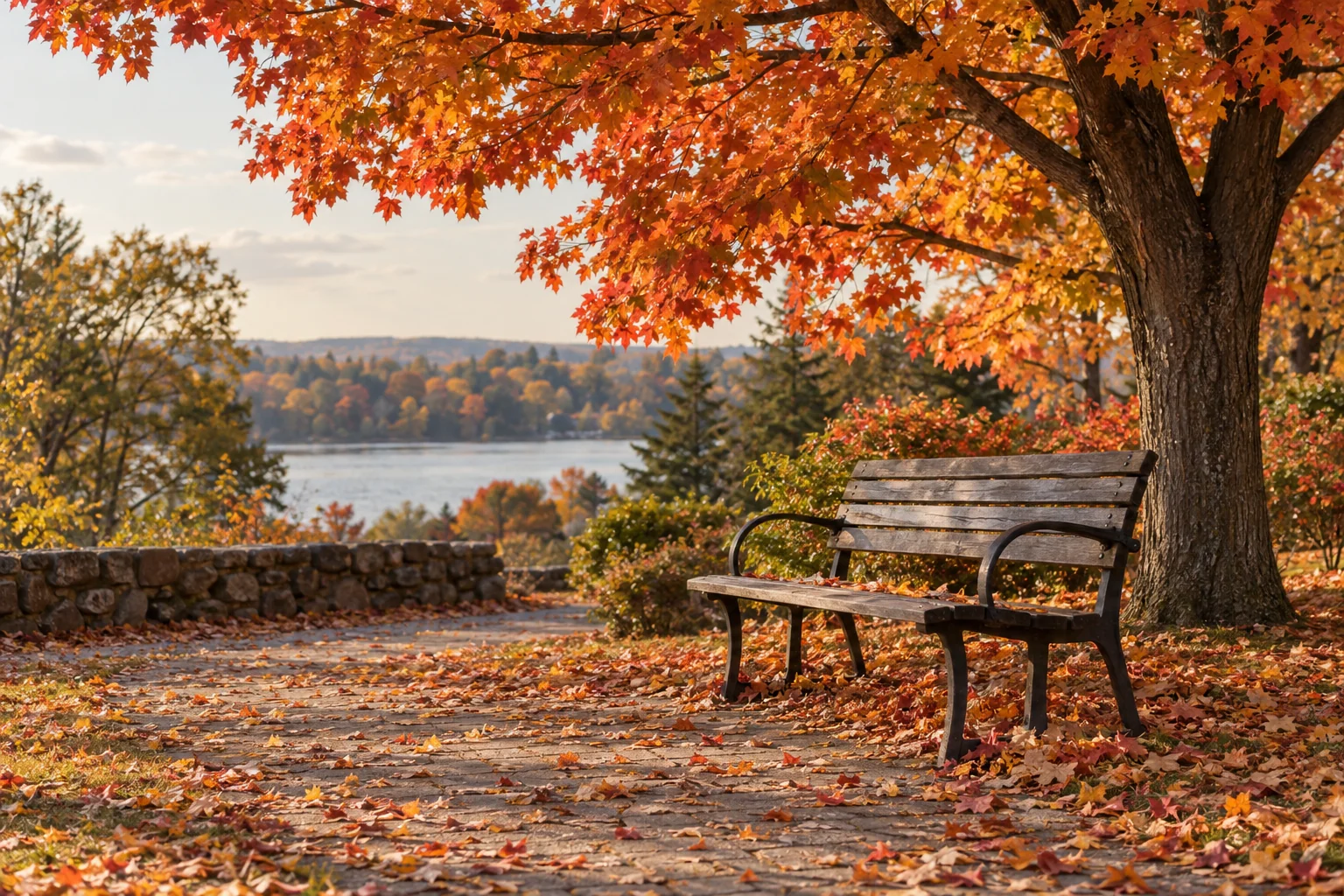
Drag the handle: the uploaded photo on the left, what the tool made on the right.
Add Object to Image puts something new into a photo as if it had been there at the moment of capture. Describe what to add and, optionally, where — "a red umbrella" "leaning against the bench" — and the tool matches the scene's lighting, perspective, scale and shadows while keeping the rest of the image exactly the same. Real-estate photographers stage rooms with it, e-commerce sellers add props to packshots, social managers add seasonal touches to evergreen photos, and illustrators drop a missing element into a rendered scene. Shadows, reflections and overlaps are handled in the same pass.
It is a staging tool for property and product photography, a prop tool for marketing images and a fixer for the shot that missed something. Add a plant to a bare corner, a bicycle outside a café, a laptop to an empty desk, a dog to the porch, a moon to the night sky. Because only the new element changes, it pairs naturally with Object Remover for swap jobs: remove the old chair, add the new one. It is also a quick way to test a design decision — a plant in that corner, a lamp on that table, a bicycle outside that café — before buying, moving or shooting anything.
Precision in the location field pays off. "On the table, left of the vase, casting a shadow to the right" produces a more convincing placement than "somewhere on the table". Keep the object plausible for the scene's scale and light, then use Edit With Words for a color tweak and Upscale before publishing. Every rendered version is saved to your library, so the original photo and each staged variant stay together and any of them can be sent on to Edit With Words or Upscale. A location note that mentions the light direction improves the shadow every time.
What you set
- Your photo
- What to adde.g. a red umbrella
- Wheree.g. leaning against the bench
After it's made
- Change details with a sentence, or hand it to any other tool
- Standard, Pro and Max quality on every make
- Enlarge to 32 megapixels or turn it into a short clip
- Every image saved to your library, downloadable full size
About this tool
- Will the added object cast a shadow?
- Yes — matching the existing lighting, perspective, scale and shadows is part of the instruction. Naming the light direction in the location field helps in tricky scenes.
- Can I add a person?
- You can describe a person ("a woman in a yellow raincoat walking past"), but real, specific people cannot be added from a photo here. The result is a plausible generated figure.
- Does the rest of the photo change?
- No — the instruction keeps everything else exactly the same. If something drifts, render again or use Edit With Words to restore the detail.
- Can I add text or a logo?
- For text, Image Text Editor and Edit With Words are more precise. Brand logos should be composited in your design app; the tool will not reproduce protected marks reliably or appropriately.
- Can I try Add Object to Image before paying?
- Yes. A new account starts with 4 free credits, which covers your first Standard image with Add Object to Image — no card required. After that, credits come from a monthly plan or a one-time pack.
Often used next
Object Remover
Describe what to remove and the background fills in behind it
Edit With Words
The universal edit: say what should change and everything else stays put
Background Changer
Keep the subject, swap the setting — one sentence, blended in properly
Image Text Editor
Replace text inside an image and keep the original font, color and perspective